Set up your Apple Watch
To get started with your Apple Watch, sync it with your iPhone.
Before you begin
- To set up your Apple Watch, you need an iPhone 5 or later and the latest version of iOS.
- On your iPhone, go to Settings > Bluetooth and make sure Bluetooth is on.
- Make sure your iPhone is connected to Wi-Fi or a cellular network.
- Turn on your Apple Watch by pressing and holding the side button next to the Digital Crown until you see the Apple logo.
- Make sure both devices are charged and keep them close together as you sync them.
If you already set up your Apple Watch but want to use it with a different iPhone, you can transfer your Apple Watch and its content to your new iPhone.
Tap a language on your Apple Watch
Then choose a region. To scroll through the list, rotate the Digital Crown or swipe the screen.
Open the Apple Watch app on your iPhone
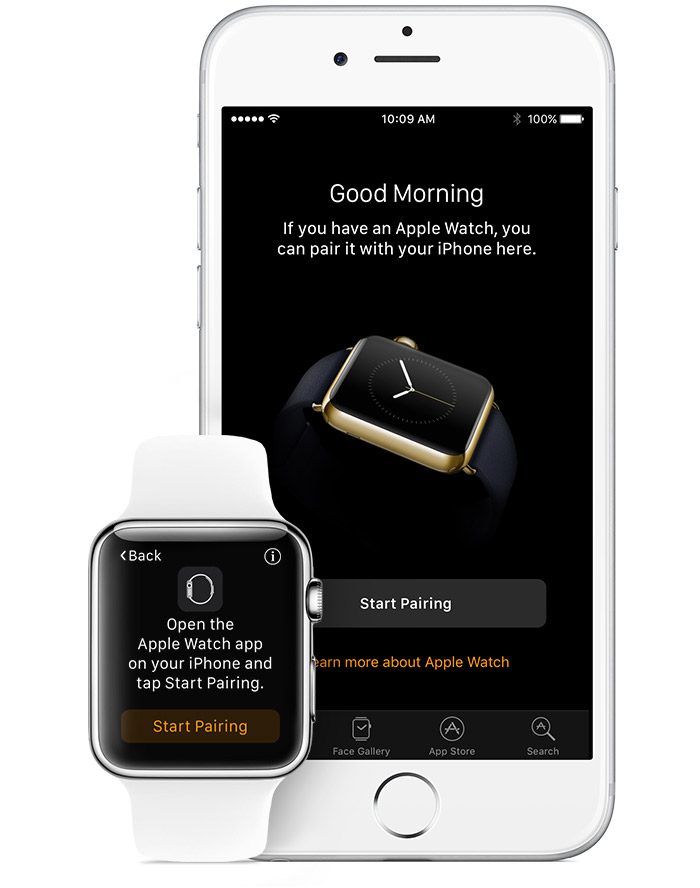
Tap Start Pairing on your iPhone and again on your Apple Watch. An animation should appear on your Apple Watch.
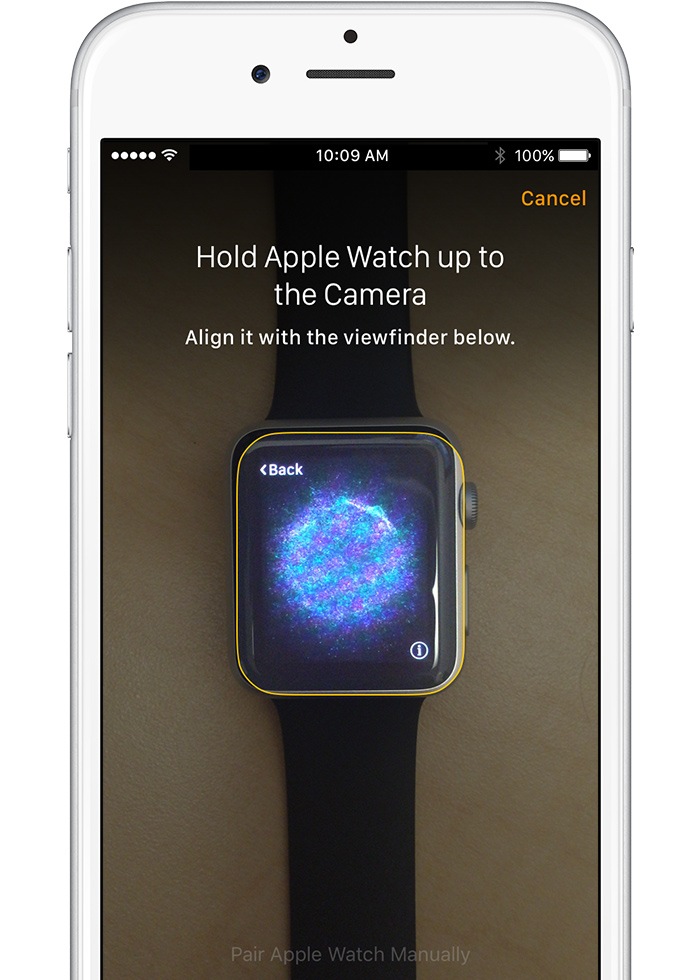
Hold your iPhone over the animation on your Apple Watch
Center the watch face in the onscreen viewfinder on your iPhone until a message says Your Apple Watch is Paired.
Set up and pick a wrist
On your iPhone, tap Set Up as New Apple Watch. If you’ve set up before, you can tap Restore from Backup and follow the onscreen steps. Then tap Left or Right on your iPhone to pick a wrist. Read the Terms and Conditions and tap Agree, then tap Agree again to continue.
Sign in with your Apple ID
Enter your Apple ID password, then tap Next. You need to sign in with your Apple ID password to enjoy features like Digital Touch, Apple Pay, and Handoff. If Find My iPhone isn't set up on your iPhone, you'll also be asked to turn on Activation Lock.
Check your settings
Your iPhone settings for Diagnostics and Usage, Location Services, and Siri will transfer to your Apple Watch, and the other way around. So if you change the settings of these services, those changes will apply to both of your devices.
Create a passcode
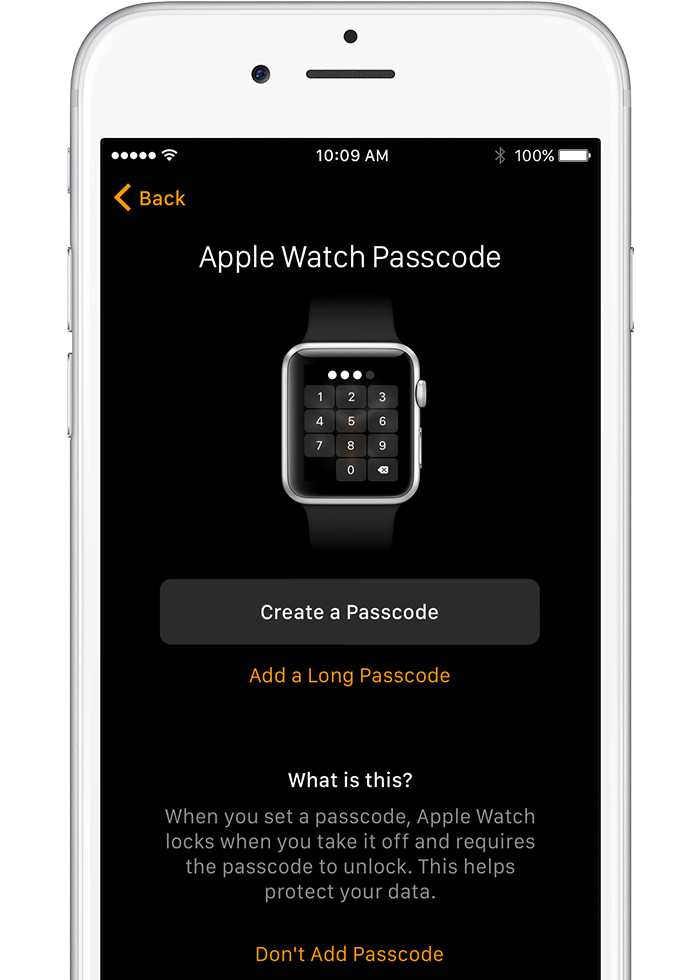
Choose whether to create a passcode for your Apple Watch. You need a passcode for features like Apple Pay. You might be asked to add a card, so you can start using Apple Pay.
Tap Create a Passcode or Add a Long Passcode on your iPhone, then switch to your Apple Watch to enter your new code. You can also decide if unlocking your iPhone will also unlock your Apple Watch.
Tap Create a Passcode or Add a Long Passcode on your iPhone, then switch to your Apple Watch to enter your new code. You can also decide if unlocking your iPhone will also unlock your Apple Watch.
Set up the Activity app and SOS
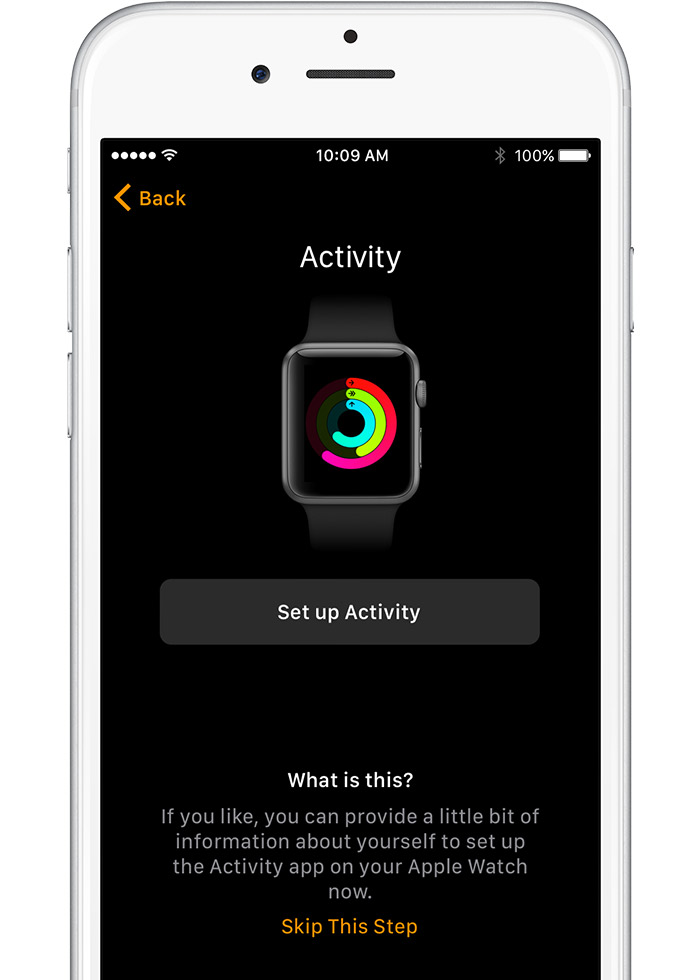
You can set up the Activity app by entering some information about yourself and setting your goals. Or set up the app later. If you already set up Activity on another Apple Watch, you won't get this step.
With watchOS 3 and SOS, you can press and hold the side button to call local emergency services. Learn how to set up and use SOS.
Sync your apps
Tap Install All to sync iPhone apps that work with your Apple Watch. Only apps that are compatible with your Apple Watch will sync. Tap Choose Later to sync only basic information like Mail, Contacts, and Messages.
Your iPhone and Apple Watch will begin to sync. Depending on the amount of data you're syncing, this might take some time. Keep your devices close together until you hear a chime and feel a gentle tap from your Apple Watch.
Your iPhone and Apple Watch will begin to sync. Depending on the amount of data you're syncing, this might take some time. Keep your devices close together until you hear a chime and feel a gentle tap from your Apple Watch.

No comments:
Post a Comment